Open Amount Passes, Pass through fees, On-demand passes and more

Coming just a couple weeks after our huge AI integration, we’re thrilled to announce our latest set of system updates! We now allow you to pass through credit card fees to your students, you can create on-demand specific passes, and you can also create open dollar/price override passes. Read on for all the details!

Optionally Pass through Credit Card Fees

To begin with, you'll now find an option in your basic studio settings page to pass through credit card fees to your students. While this is something we’ve generally been opposed to, we’ve decided this choice should rest with the studios owners using our system. I’m not certain studios should pass through these fees, but I am sure our customers shouldn’t be the only merchants in the world without this option. For those of you who want to pass through credit card fees, you now have a way to do so.

Optionally pass through processing fees

New Pass Options: Open Dollar/Donation Passes and Dedicated On-Demand Passes

We've also made several updates to the pass types you can create. Now, when you create a pass, you can choose either a set price (the standard option) or an open dollar amount pass. Open dollar amount passes allow you to create donation-based passes where people can enter any amount they like. This feature can also be used for sliding scale events, other situations where you want the student to select their own price, or any situation where you need an easy way to charge a student any amount you like.

Open dollar amount passes!

When choosing this option, you can set a minimum price and a custom message. For open amount passes, the minimum price is the lowest a student can pay, but admin and desk users can always enter any amount. We don't display any price information on open dollar passes, but you can include recommended donation amounts in the pass name and add any details you want in the custom message section. We're excited to offer this feature, as many of our customers have requested it for some time!
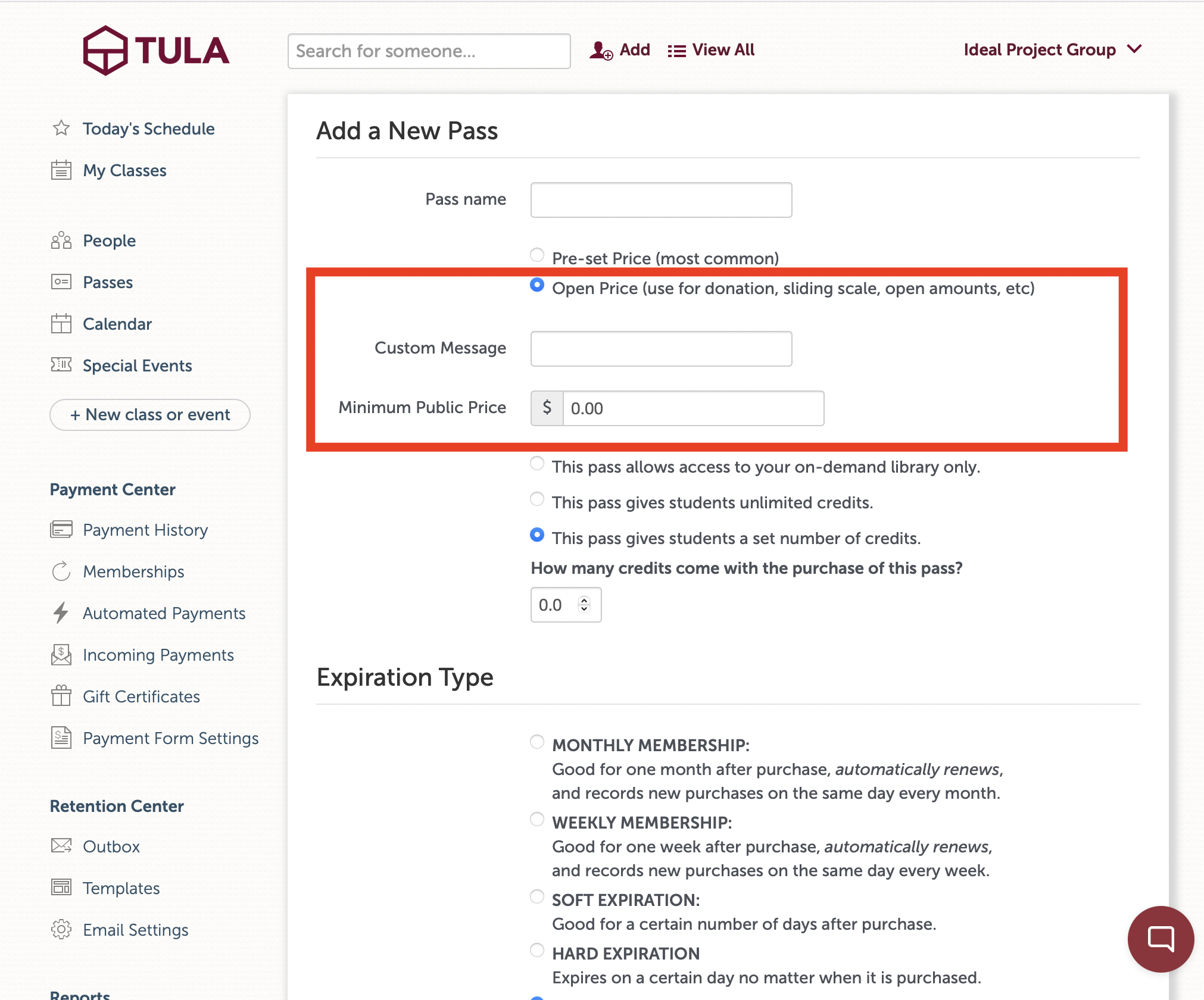
Set minimum price and display a custom message

Another enhancement we've made to passes is the option to provide on-demand access only, so students can access your video library without receiving credits for in-person classes.

Dedicated on-demand passes to provide access solely to your video library

New Reports

We're also introducing a new report called the "pass funnel report." This report allows you to track what happens after someone purchases a specific pass, such as how many attendances they've had since their purchase and whether they made any subsequent payments. This report is especially useful for gauging the effectiveness of your introductory passes and specific campaigns, like discounts aimed at bringing people back to your studio.


Find Your Perfect Class Updates

We've made several improvements to the "find your perfect class" feature we released last month, which enables your students to use natural language search to find the best on-demand video for their needs. As a reminder, you can now transcribe all your video recordings and make those transcriptions easily accessible to your students. If you're interested in this feature, be sure to contact our support team and request access during our beta period.

We greatly appreciate you being customers of Tula Software, and as always, if you have any questions, simply send an email to the support team!

Purchase Triggers, Phone Number Requirement Settings and Instructor Profile Pictures

We’re happy to announce a handful of new features to give you more control of student information, automate more purchases and improve the appearance of your on-demand pages.

Purchase Triggers

This powerful new feature allows you to trigger one more subsequent purchases, after an initial purchase. For example, you might have an intro pass that automatically converts into a monthly membership. You can add multiple purchase triggers to a single pass, and you can daisy-chain automations together, giving you an almost unlimited number of options.

You’ll now see an “Automated Payments” page within the Payment Center category where you can see all upcoming automated purchases, all completed automated purchases, and any cancelled or failed purchases. Anytime a student has an automation, we’ll display this in the purchases section of their profile page, and if you need to stop it, you can simply remove the automation.

As for the student side of things, any time a student purchases a pass with an automation, we’ll let them know which pass will be purchased, and when it will be purchased.

We hope the power and flexibility of this feature gives our customers all sorts of creative options for automating the different ways your students can participate with your studio and communities.

Optionally Require Phone Number

Some of our customers really want to be able to require phone numbers when students pay or register with their studio, so we’ve now made this an option. We now ask for phone number, and you can optionally decide whether or not to require it. The only user that can make this change is the account owner, by going to the “Basic Studio Settings” page.

Profile Pictures for Instructors and Admin/Desk Staff

Last month we released our new on-demand page, which allows your students to more easily access your video library. Because not all videos have cover images right away, the initial page view experience isn’t always great. Now, you can upload a profile picture to your instructor profile pages, and if a video doesn't have a cover image, we’ll display the profile image of the instructor who recorded the class.


New On-Demand Pages for Student Mobile App Sites

We’re excited to share that we’ve added a new page to the student mobile app sites (previously called the student url) where your students can now access all your audio and video recordings, as well as filter the recordings by file type, instructor and event tag. It provides great additional value for your members and is already set up and ready for your students to use. (As a reminder, you can see the url for your mobile app site on the website widgets page.)

New On-Demand Page

Every mobile app site now has a new page titled ‘on-demand’. Any audio and video recordings you have will automatically show up here, and until you upload a cover image will have a light yellow background in the video frame as shown below.

A video page with no thumbnail images

On-demand page without thumbnail images

On-demand page with thumbnail images

Admin Side - Event Recording Settings

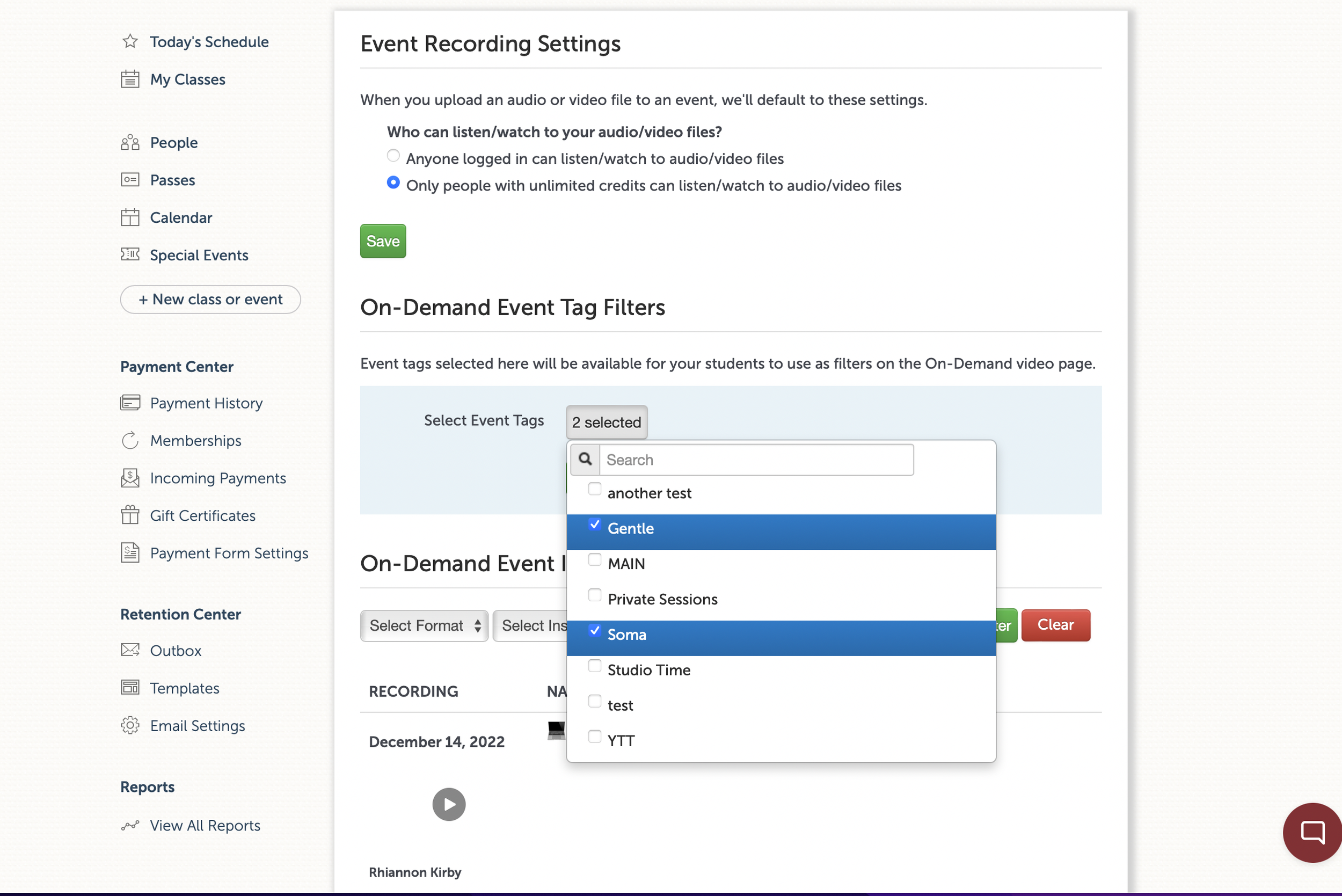
To begin customizing your on-demand page, visit the “Event Recording Settings” page in the studio menu on the administrator side of things. On this page, you’ll see a list of all your events with recordings, the tags they have on them at present, and a link out to the event so you can easily add/edit tags and upload thumbnail images should you desire.

Select the tags you want your students to be able to choose from

You’ll also see, just above the list of events with recordings, a section where you can choose which event tags you want to appear as options for your student to select from. This is super handy as you might have both internally meaning tags for things like custom calendars, but want to use different tags with a different naming convention for your students. This gives you maximum flexibility to set things up in the way that’s best for your studio and your students.

Event Page Updates

The event pages themselves where you can upload a recording of the event remain largely unchanged, however you’ll now see a section where you can upload a cover image in addition to uploading your recording.

Ready to use now!

These updates are available and in production for all of our customers now. Check it out, we hope you love it as much as we do!

Student Tags

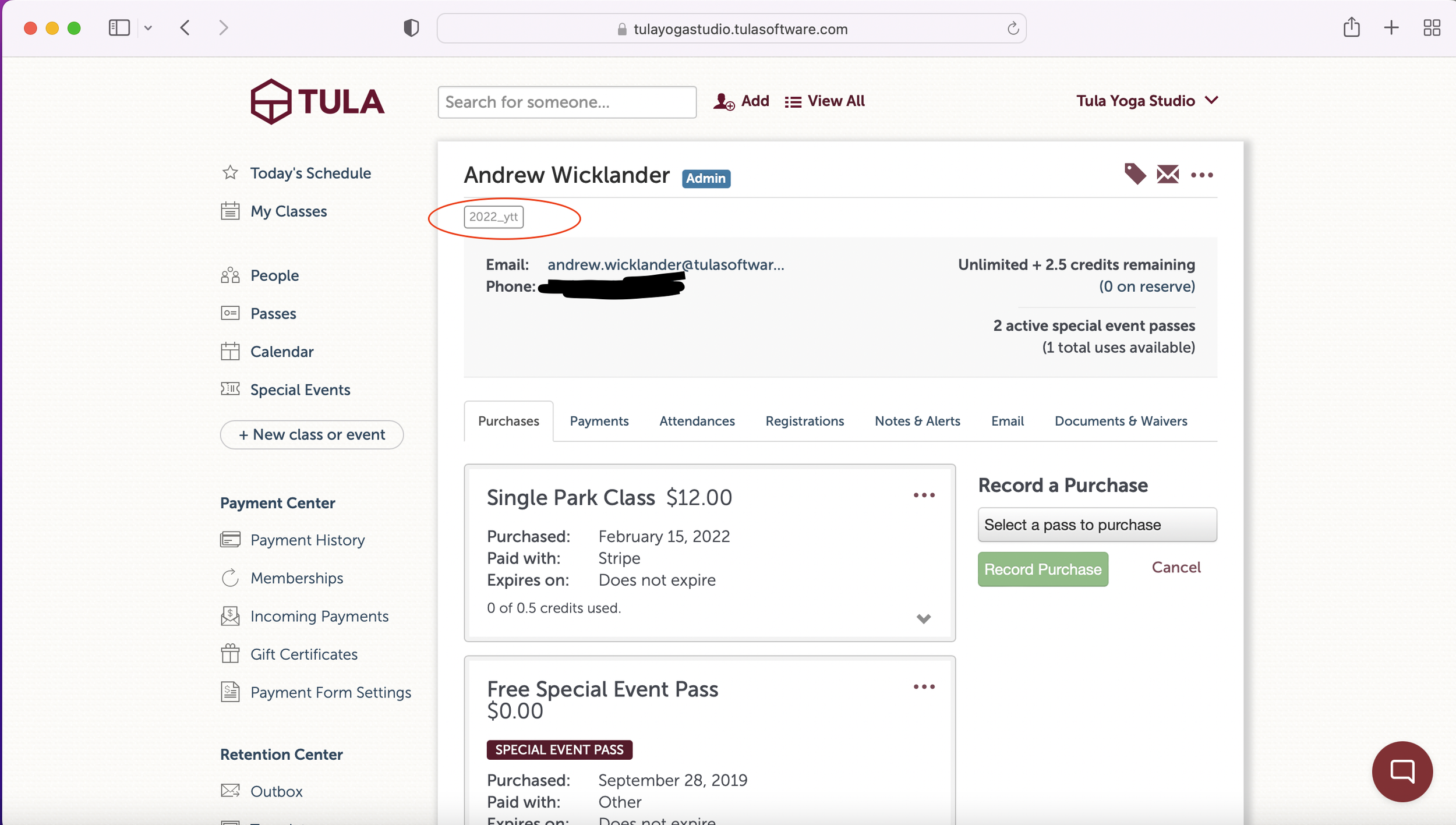
Good news! We’ve updated our tagging system so that in addition to tagging your events, you can now add tags to your students and other users at your studio. Tags on users are super useful for the times you want to group students together without having to rely on the passes they’ve purchased or the events they’re attending.

Easily add tags to users for things like teacher trainings, retreats, skill levels or as another example to indicate when someone is a local when your studio is frequented by tourists. Super useful for our customers in Hawaii and Aruba! 😍

How it works

The pattern for adding tags to users follows exactly the pattern for adding tags to events. Simply tap/click the tags icon while on the user in question, and add an existing tag or create a new one. To remove a tag, click the tag icon and delete the tag.

Like event tags, all the tags you create are available to be seen on the “studio tags” page which you can access via your studio menu. Once you’ve added tags to people, you can easily look up your students by tags in our reports, and of course email them as a group.

Tags are quick and easy to use, super useful and can help you communicate with your students more easily. Check it out!

Other misc. updates.

In addition to our tags system we’ve updated the find-a-sub feature to include class title when requests go out, along with shipping a handful of small bug fixes.

As always, more to follow next month and in the meantime email us with any questions!