Mobile App & Kiosk Updates: Appointments, Payments, Messages, and a Faster Everything πŸ“±

In April we shipped the Mobile Check-In App, and said at the time that we believe Progressive Web Apps can offer a superior experience for mobile users. This update is us following through on that. The check-in app is now a full studio app: five tabs across the bottom β€” Check-In, People, Appointments, Collect, and Messages β€” and it's significantly faster than the version we launched with.

As before: it's the same data as your desktop, there's nothing to install from an app store, and if you already added the app to your home screen you don't need to do anything. It updates itself.

Here's what's new.

People

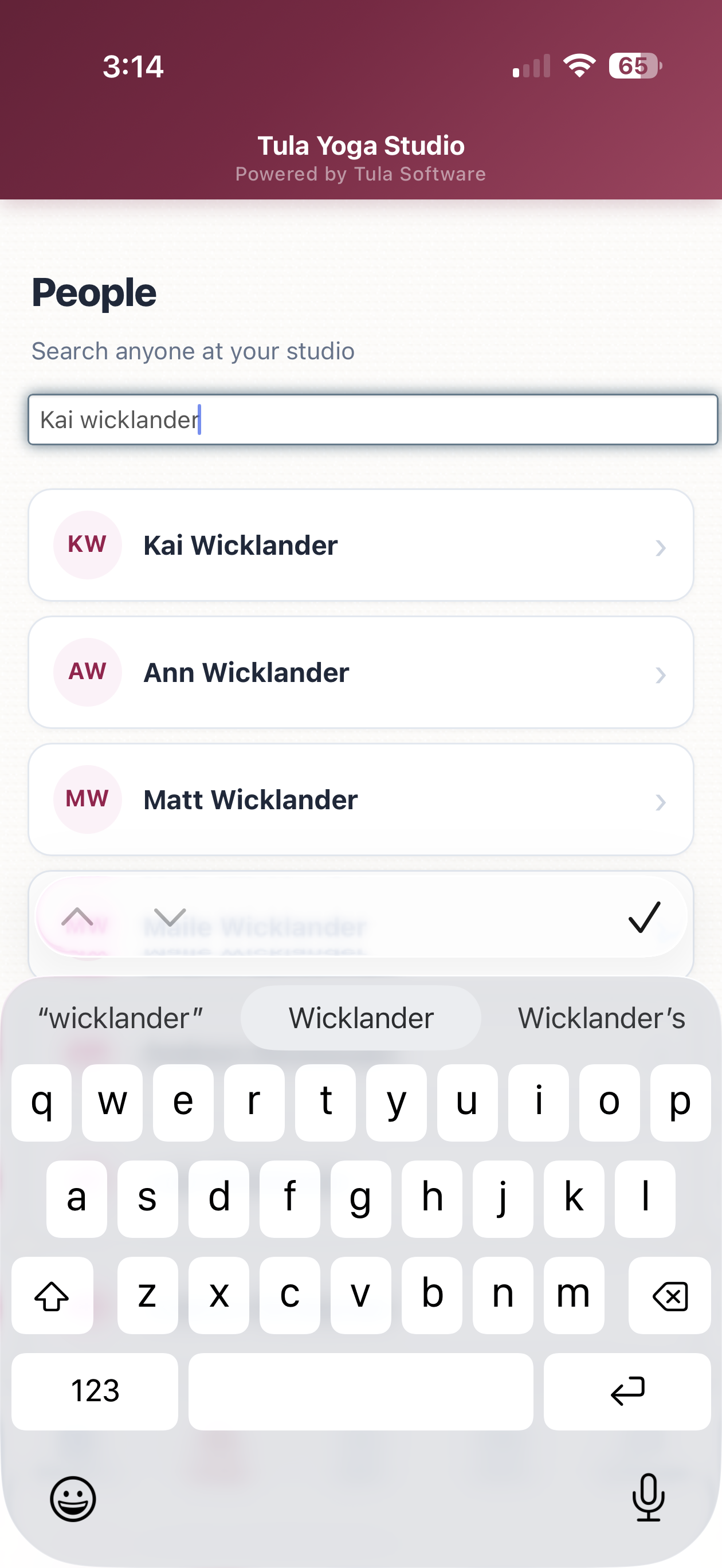
People now has its own tab. Search anyone at your studio by name or email and open their full profile β€” contact info, credits, passes, payment history, attendance, and upcoming registrations. The tab also shows who checked in recently, so the person you just worked with is one tap away.

Appointments

You can now see and manage appointments from your phone:

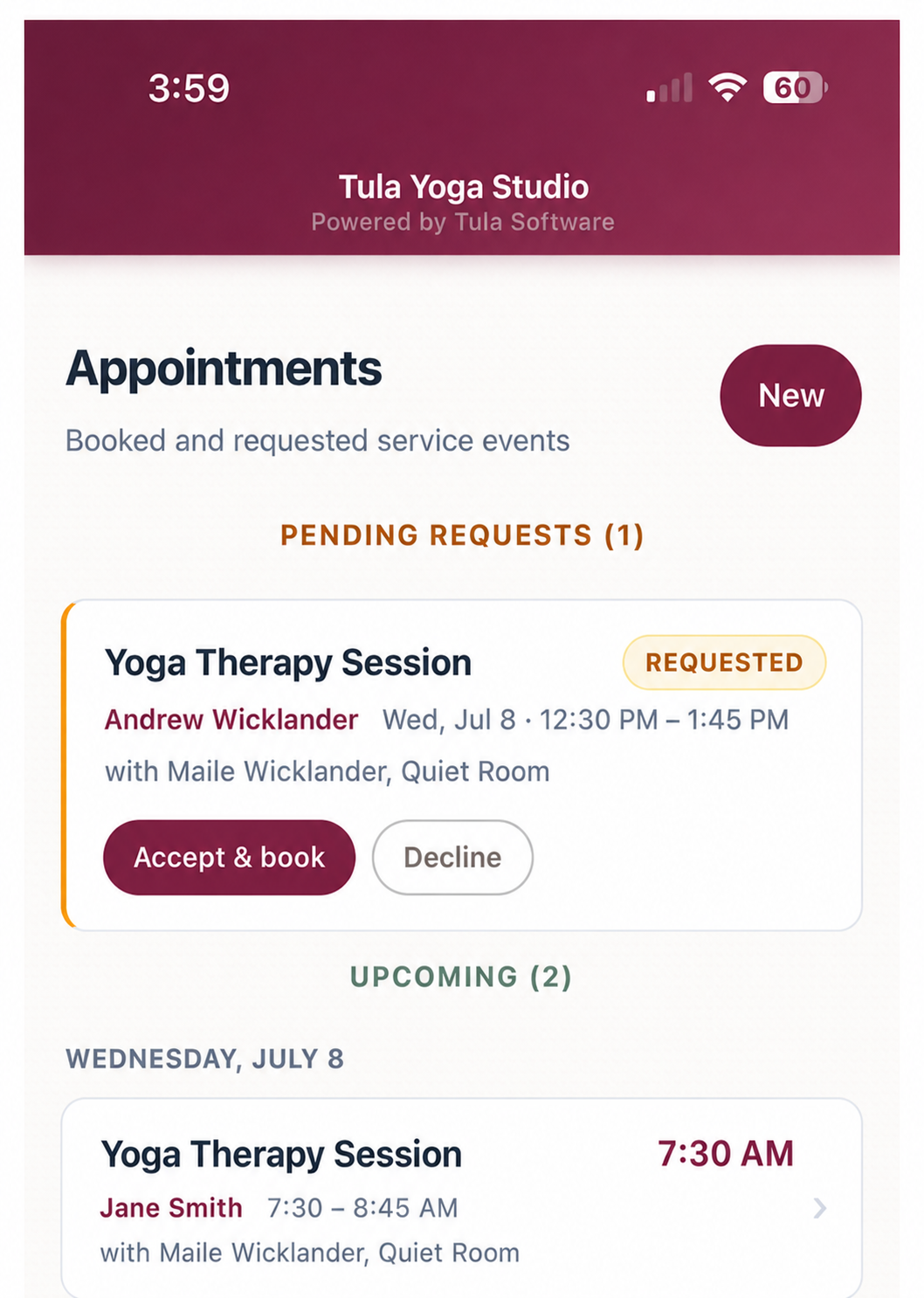
Upcoming appointments are listed by day. Each card shows the service, the client, the time, and the provider. Tapping an appointment opens its check-in screen β€” because an appointment is an event, you check people into it the same way you check them into a class.

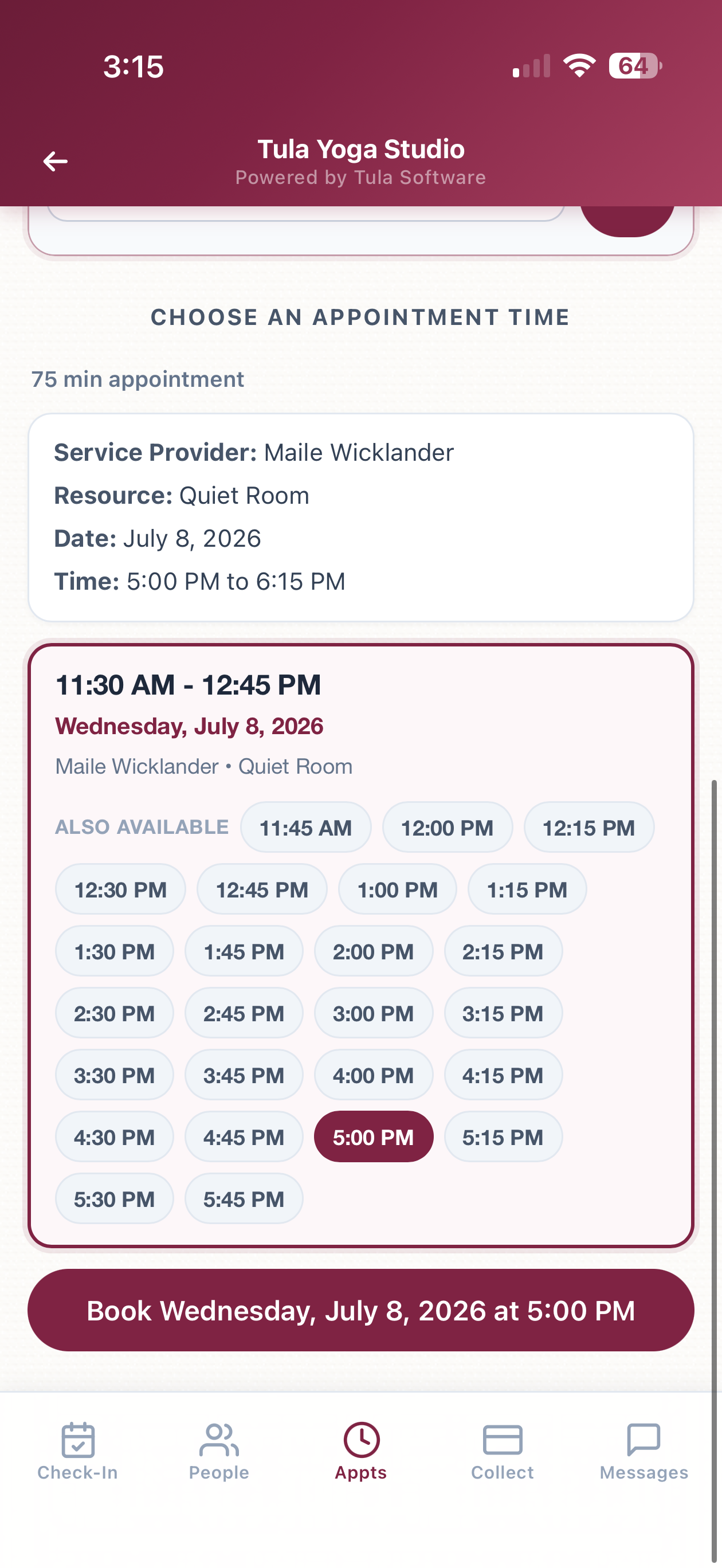
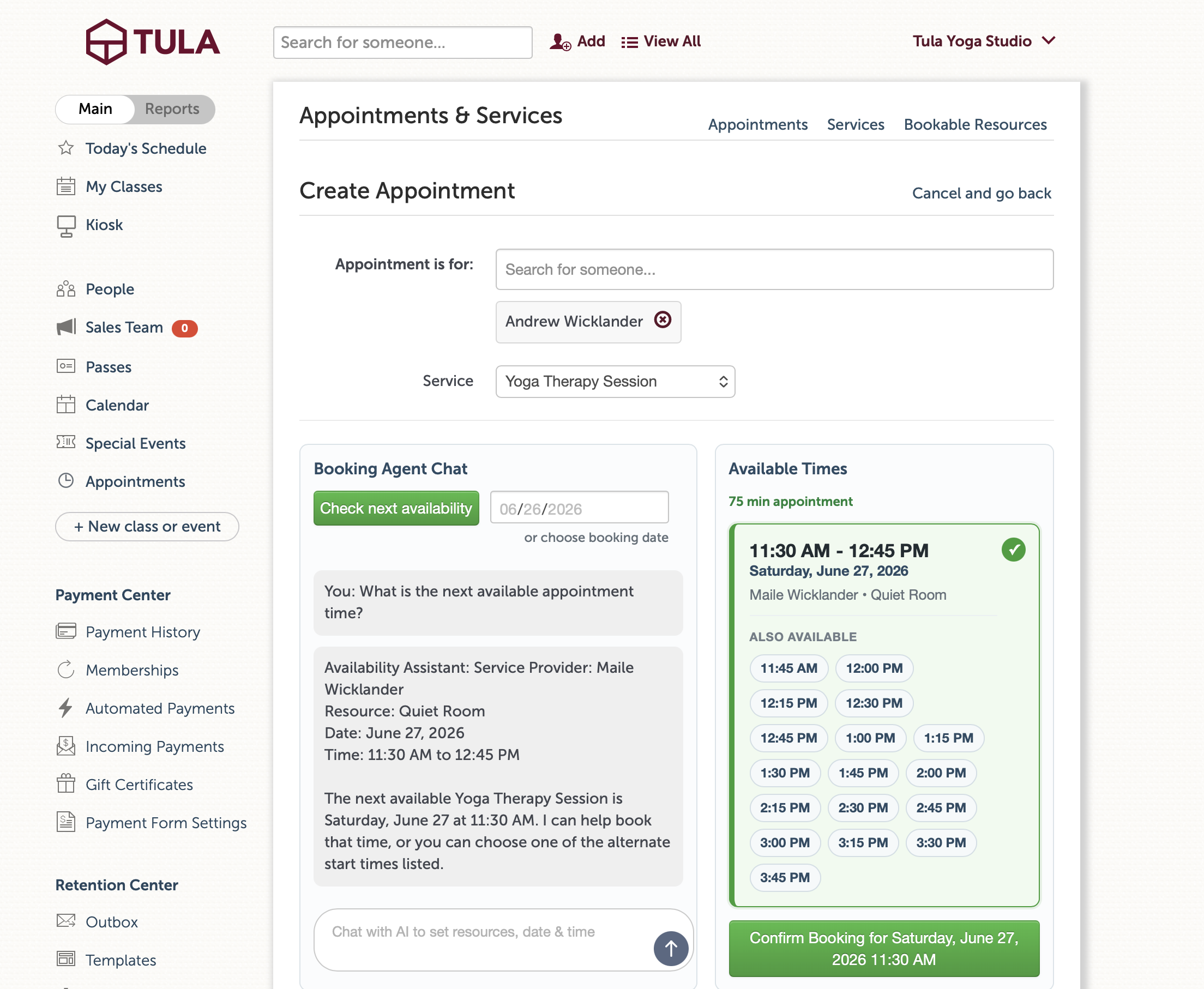
Booking a new appointment works the way the student booking page works: pick the person, pick the service, then ask the booking agent for times ("What's open Thursday afternoon?") or check a specific date. The agent replies with actual open slots, you tap one, and book it. The agent handles provider and room assignment as part of the conversation.

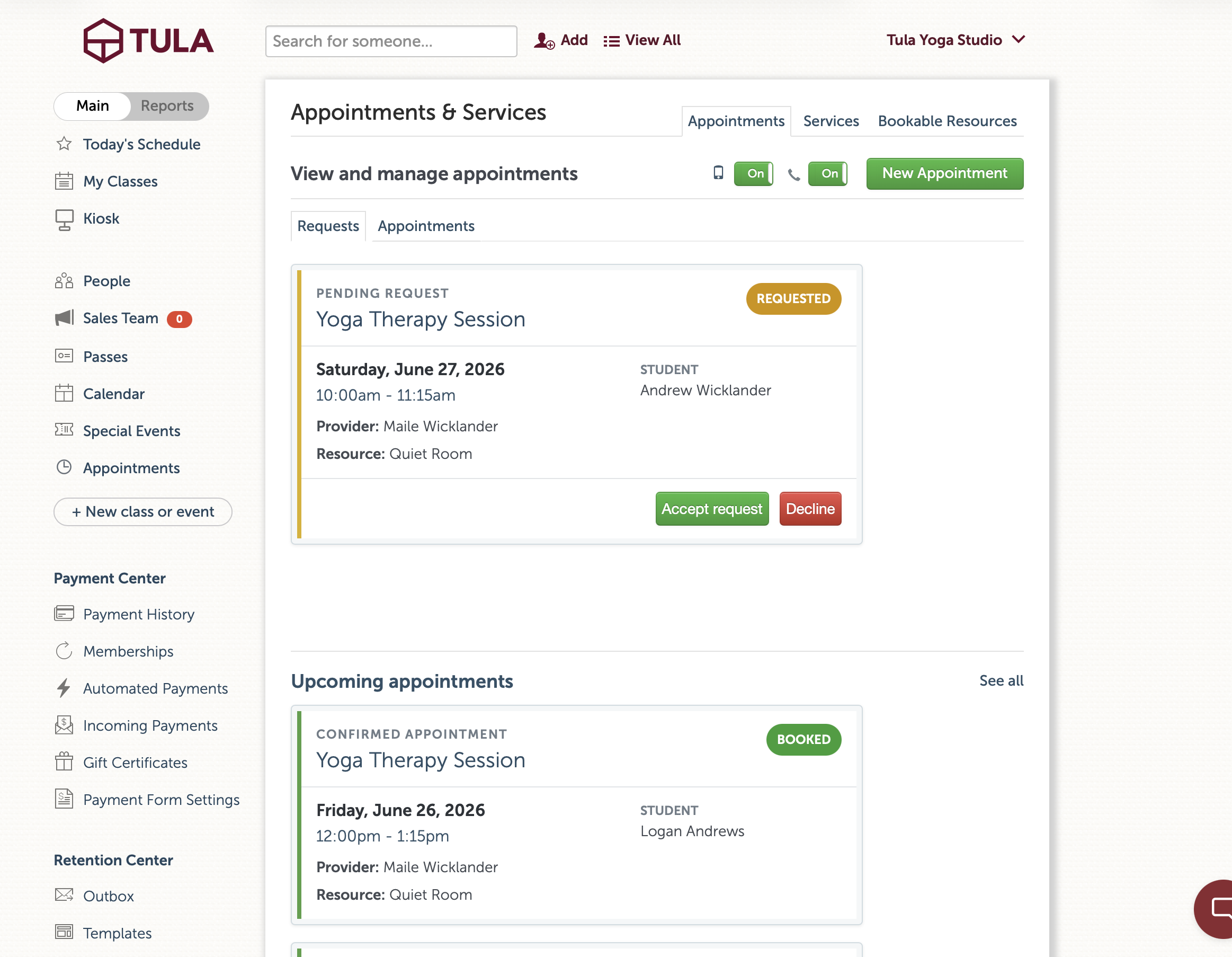
Pending requests from students appear at the top with Accept & book and Decline buttons. Accepting creates the booking and sends the same confirmation texts and emails as accepting from the desktop. Declining notifies everyone too. It's the identical logic behind the desktop requests page and SMS replies β€” just available from your phone now.

Collect payment

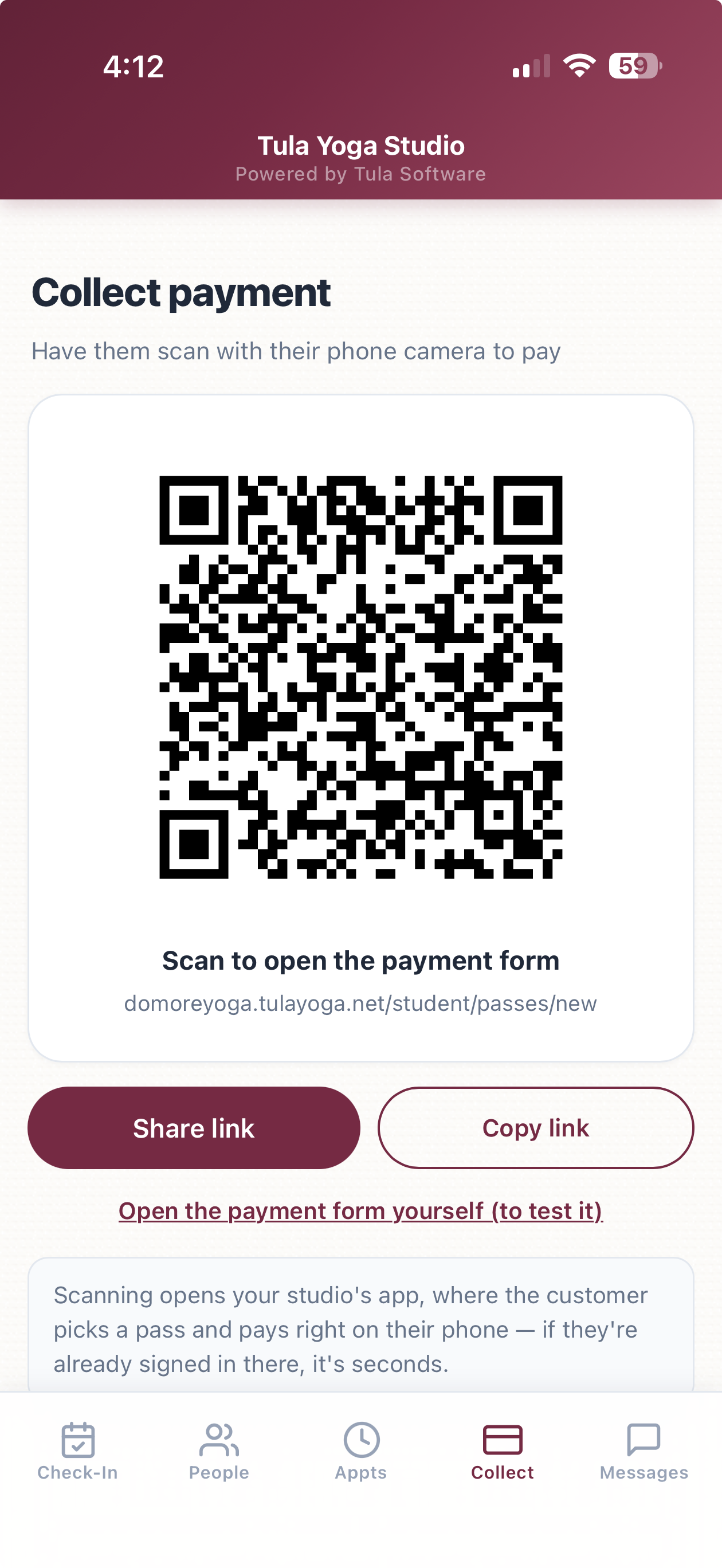
There's a new Collect tab for taking payment in person. It shows a QR code β€” the customer scans it with their phone camera and lands on your studio's app to buy a pass. If your studio has its own domain configured, the QR uses it, so customers who are already signed in there skip login entirely.

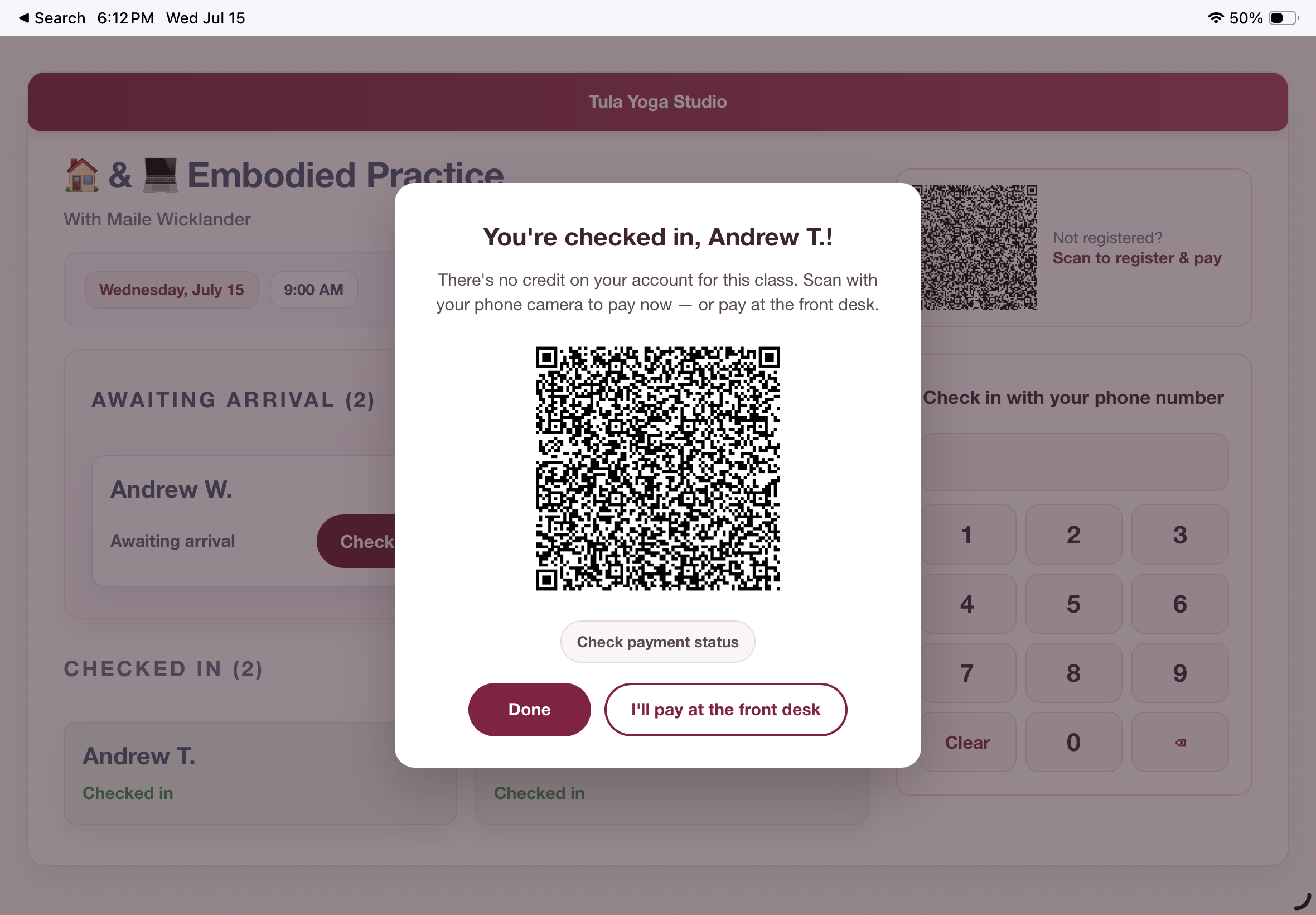
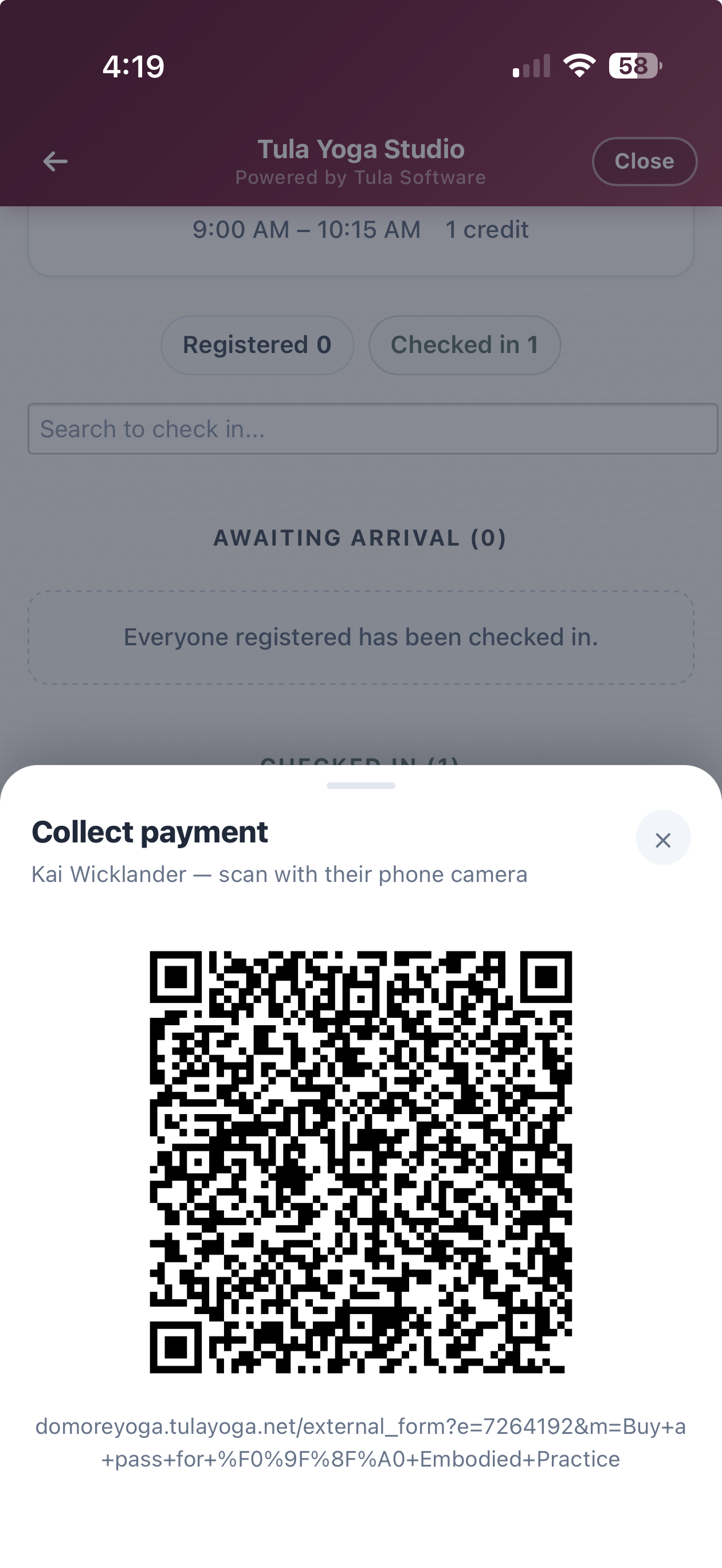
This also connects to check-in. When someone checks in without a pass, their card shows an Unpaid badge with a Collect payment button. Tapping it slides up a QR code for that specific class β€” scanning opens your payment form showing only the pass types valid for that class. You never leave the check-in screen.

Messages

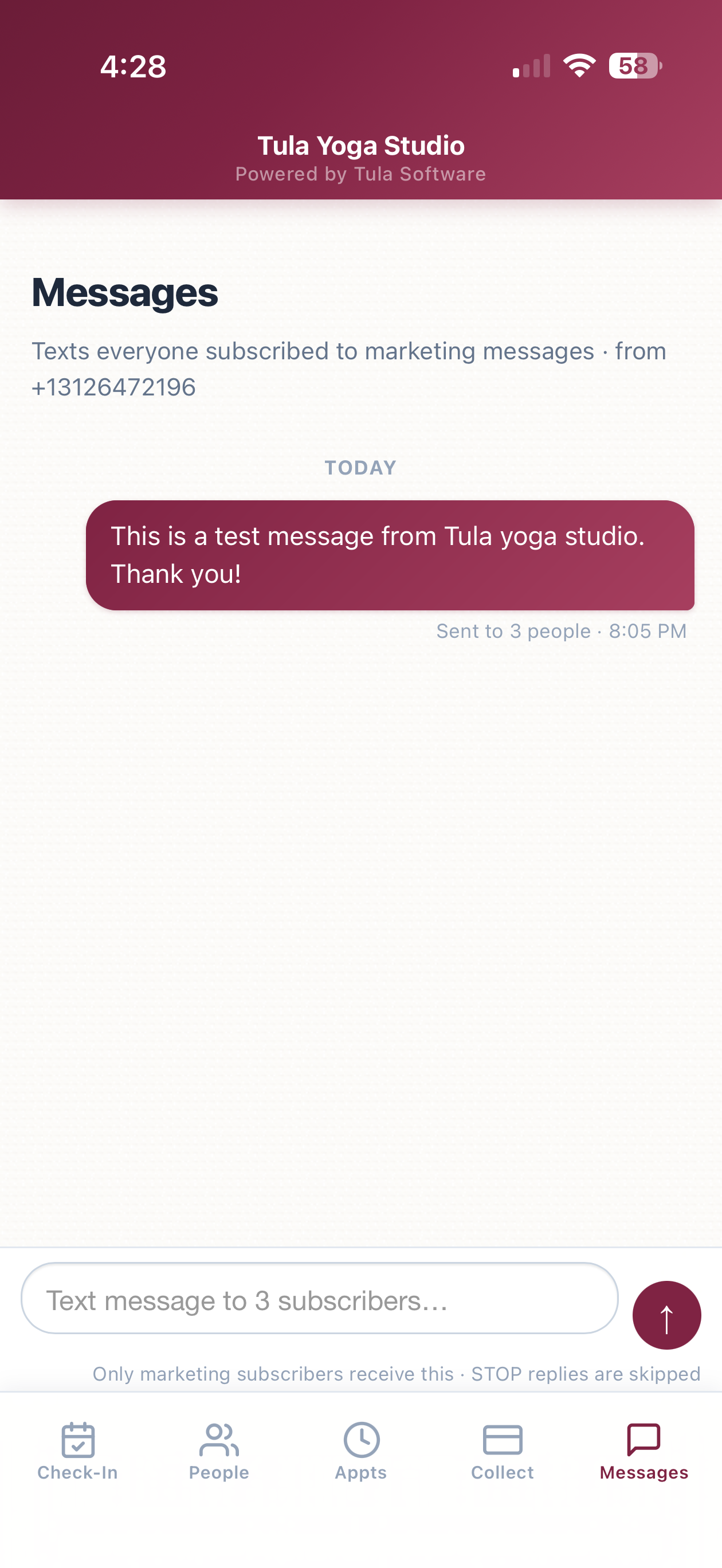
Owners and admins get a Messages tab: a fast way to text everyone subscribed to marketing messages at your studio. It looks like a normal messaging thread β€” your past sends as bubbles, a composer at the bottom, and a recipient count so you know exactly who you're reaching before you hit send.

A few facts about how it works:

Only people with an active marketing text opt-in receive it. Anyone who replied STOP is skipped automatically.

Messages send from your studio's own number, through the same compliance pipeline as the rest of Phone Numbers.

Each message shows real delivery data as carriers confirm it β€” "Received by 30 of 42 people" β€” not just "sent."


The kiosk gets a register & pay QR code

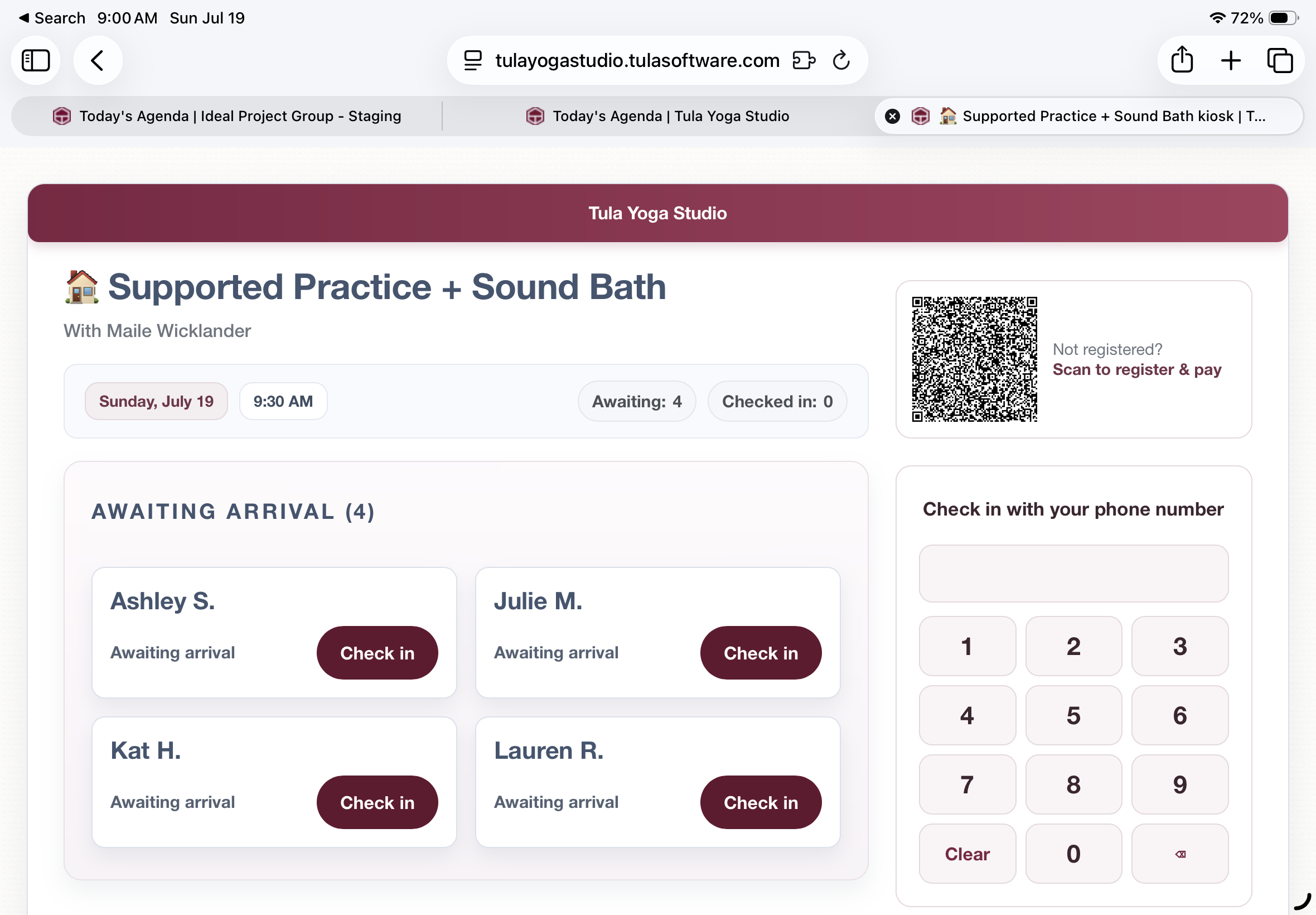
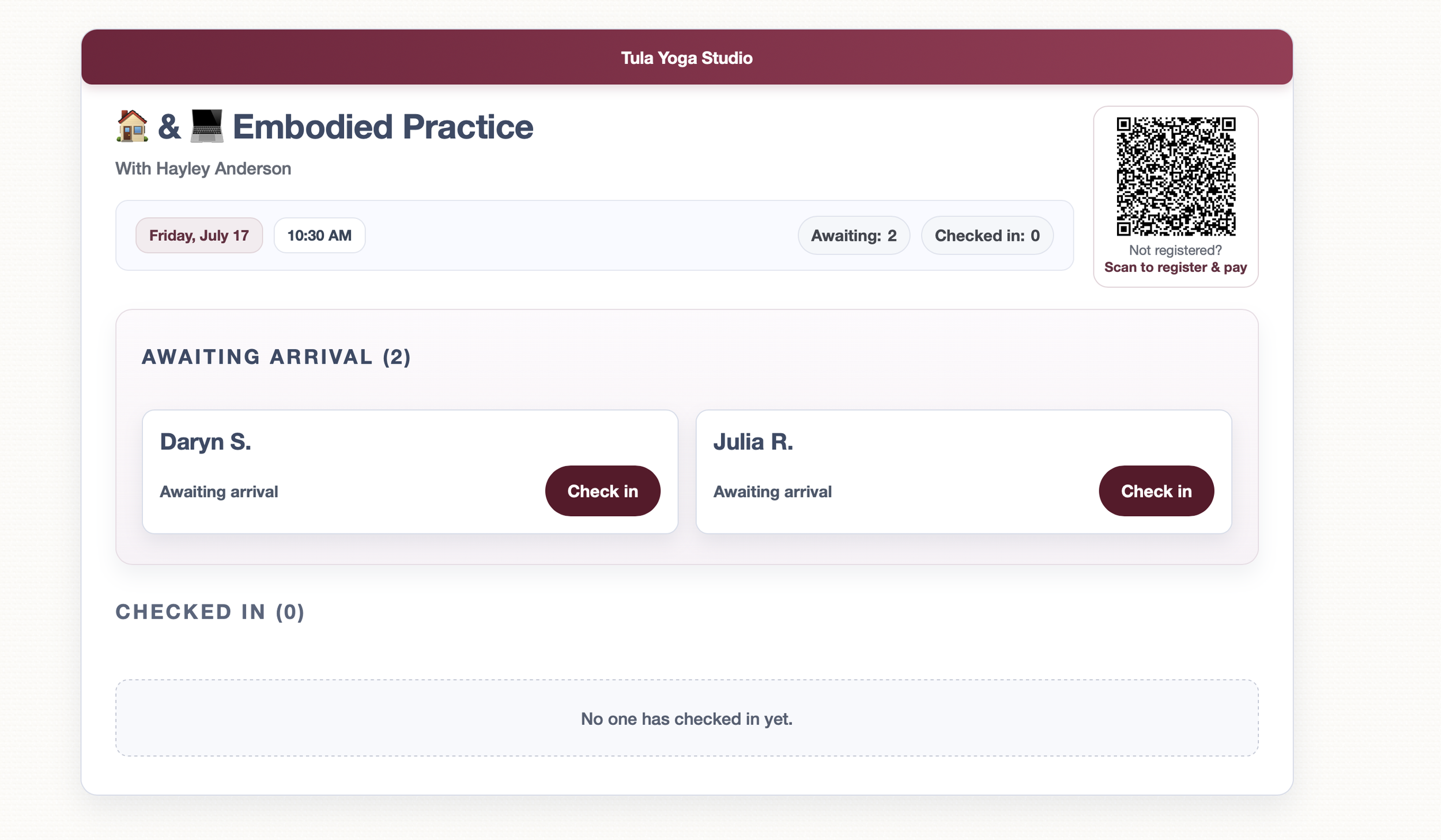
The self-service kiosk got an upgrade too. When a class still has space and has publicly purchasable passes, the kiosk page now shows a QR code next to the roster. Someone who walks in unregistered scans it, pays on their phone, and is registered for that class β€” no staff involvement. Like the mobile app's QR codes, it points at your studio's own domain when you have one set up.

Speed

We rebuilt how the mobile app loads and navigates; we're treating PWAs as a core product.

The app now ships about one sixth of the JavaScript it used to. Less to download, much less for your phone to parse on every launch.

Switching tabs starts loading the moment your finger touches the screen, and the app paints the last version of a page instantly while the fresh one loads behind it. In practice, tab switches feel immediate.

Cold launches show a branded loading screen instead of a white page, and static files are cached on the device so repeat launches skip the network almost entirely.

Dozens of smaller changes: system fonts, no tap delay, press feedback on buttons and cards, and page transitions on browsers that support them.

Getting started

Nothing to set up. If the app is on your home screen it's already updated; if not, open the menu in the upper right of your Tula dashboard, go to Mobile Admin Apps, and follow the instructions. Access works the same as before β€” Owners, Admins, and Desk Staff β€” and the Messages tab is limited to Owners and Admins.

We hope you love this as much as we do and as always, if we can help you with anything reach out to our help email!

πŸ“…πŸ“ž Appointments Upgrades - Now with Voice too!

I’m excited to announce some big new features to our appointments system!

A few weeks ago we launched Phone Numbers, giving studios their own dedicated business phone number for sending text messages. At the time I mentioned that the phone number was really infrastructureβ€”that we were building it as a foundation for future phone-based features.

This release is a great example of this.

Before we get to the phone though, we spent a lot of time improving Appointments itself.

A smoother booking experience

The first iteration of our appointments system was great, but it only presented one time slot at a time as the conversation progressed. Now, we render all the availability options together, making a much faster and smoother booking experience for both you and your customers.

You’ll see a few nice improvements in the booking flow:

  • Multiple verified appointment times presented together.

  • A cleaner, mobile-friendly layout that's easier to scan.

  • Downloadable calendar invitations for admins

  • Better appointment notification text messages.

  • Lots of smaller improvements across both the student and admin experience.

Together these changes make booking feel significantly better.

The same booking experienceβ€”now over the phone!

Once we had the booking experience where we wanted it, the next step became obvious.

If our booking agent is an AI powered booking agent, and someone can book an appointment by chatting on your website...Why shouldn't they be able to call your studio and do the same thing?

If you've set up a Tula Phone Numberβ€”the same one you've been using to send text messages to your clientsβ€”you can now enable Voice Booking.

When someone calls your studio, the phone can answer and help them request an appointment using the same booking intelligence that powers the web experience.

Returning clients are recognized automatically by their phone number and new clients can create an account during the call by verifying their email address.

Still a request

Just like before, every appointment requested from the website or over the phone lands in your Requests tab for approval.

Clients get a much easier booking experience, while studios stay in complete control of their schedules.

Getting started

The updated booking experience is already live for all studios using Appointments.

If you've already configured a Tula Phone Number, you can also enable Voice Booking and start accepting appointment requests over the phone.

If you haven't set up a phone number yet, head to Studio Settings β†’ Phone Numbers. Besides letting you send text messages to your clients, it's now also the foundation for voice bookingβ€”and there are more phone-based capabilities on the way.

As always, let us know what you think.

πŸ“± New Feature: Phone Numbers

I'm excited β€” really excited β€” to announce a feature we've been heads-down building for a long time: Phone Numbers in Tula.

Studio owners can now provision a dedicated phone number for their studio. Right inside your Tula Software account. Self-serve. End to end.

I want to spend a minute on what that actually means, because I think it's easy to underestimate.

Getting a real phone number that can text U.S. consumers in 2026 is not a "click a button and you have one" situation. The carriers β€” for very good reasons β€” built an entire compliance regime around it. To send a single text message to a student, you legally need:

  • A registered brand with the carriers, vetted against your business identity

  • A registered campaign describing how and why you'll be texting

  • A published Terms of Service that students can read before opting in

  • A published Privacy Policy that explains how their number gets used

  • A compliant opt-in flow where students actively agree to be texted

  • A compliant opt-out flow that handles STOP and HELP correctly

  • An approved phone number provisioned to your registered brand

  • A messaging pipeline that respects all of the above on every send

So we made it simple. One signup. Every one of those steps, handled. No spreadsheets, no third-party accounts to juggle, no legal pages to draft on your own, no separate hosting to figure out. You give us the basics about your studio and we walk the rest of the road for you.

What we actually built

Inside Tula, you fill out a single guided signup. We take it from there:

  • Your brand gets registered with the carriers from the info you give us

  • Your campaign gets registered with the right use case for a studio

  • Terms of Service get hosted for you, branded to your studio, at a URL students can actually visit

  • Your Privacy Policy gets hosted alongside it

  • Your phone number gets provisioned and attached to your brand

  • Compliance handling is wired up, end to end, so STOP and HELP just work

  • Sending is connected to the rest of Tula, so your number is ready the moment it's approved

When your number gets approved, the very first thing you can do with it is send text messages to your students β€” from your studio's own dedicated number, with your studio's identity on it, fully compliant, no asterisks.

And then there's everything next

This release is also the foundation of an entire communications layer we can now build on top of Tula. The hard, ugly, unglamorous infrastructure work β€” brand, campaign, compliance, hosting, provisioning, pipeline β€” is done. Every phone-based capability we build from here gets to stand on top of it.

That's the part I'm most excited about. But that's a story for other release posts. Today, the news is: you can get a real phone number for your studio, inside Tula, and start texting your students from it.

How to get started

Owners β€” head to your studio settings menu and click Phone Numbers (it sits right under Custom Domains). Pay a one time setup fee of $199 and agree to the $19/mo maintenance fee. Walk through signup. We'll handle the rest.

Note: Carrier approvals usually take a few business days but can take up to 4 weeks so we recommend signing up as soon as possible.

πŸ₯³ New Feature: Upgraded Student Apps!

I'm excited to announce a feature we've been working on for a while β€” the brand-new AI App Designer. It's the biggest upgrade to the mobile setup we've ever shipped, and it completely changes how you customize your studio's app.

The old way worked, but it asked a lot of you. Pick this color, upload that background, tweak an opacity slider, preview, repeat. If you weren't a designer, getting to something that genuinely felt like your studio was a slog.

The new way is a chat. You describe the feeling you're going for β€” "warm, calming yoga retreat with linen tones and lots of whitespace," or "bold high-energy HIIT studio, dark with neon accents," or "boutique pilates with an editorial fashion vibe" β€” and a minute later your phone preview reloads with a fully custom-designed app. Landing screen, internal pages, colors, typography, the whole thing. Don't love something? Tell it what to change ("rounder buttons," "more breathing room at the top," "softer green") and it iterates with you. Every version you generate is saved in the sidebar β€” jump back to a previous design anytime, then hit Publish when it's right.

Three things I want to specifically call out, because they make this much more than a "pretty picture" generator:

πŸ“… Today's classes, live on the home screen β€” your landing page can show today's schedule with class names, times, and instructors, pulled fresh from your calendar on every page load. Great for the student who opens the app five minutes before walking in and wants to know "wait, is the 5:30 still on?" No more stale screenshots β€” what they see is what's actually happening today.

▢️ Featured recording spotlight β€” pick one class recording that’s public, and choose to make it a featured vido, and the AI Designer drops a polished video card directly onto your home screen. Title, instructor, date, built-in player. Perfect for a "watch this first" moment when someone opens your app for the first time.

πŸ‘‹ Personalized greetings β€” the AI can welcome each student by name and show their attendance count, so opening the app feels like walking into a studio where someone knows them.

These aren't baked-in screenshots β€” they're live on every render, for every student.

Your existing mobile setup is still there. Nothing has been taken away β€” the manual color and background controls work exactly like they did before, and you can mix and match. The AI Designer is a faster path layered on top of everything you already have.

We're rolling this out to all customers on all plans and we hope you have as much fun playing with it as we did building it. Try a few different prompts. Have fun with it. Then show us what you came up with, we'd genuinely love to see what you make!